

How to Send Notifications from Google Sheets | 2026 Guide
Imagine your sales team just closed a high-value deal, but nobody noticed the spreadsheet update until hours later. Or your inventory dropped below critical levels while everyone was in meetings. Missing crucial data changes in Google Sheets costs businesses time, money, and opportunities every single day.
The good news? Google Sheets can send you automatic notifications when your data changes, ensuring you never miss important updates again. This comprehensive guide walks you through every method to set up notifications—from basic built-in features to advanced multi-channel automation systems used by professional teams.
At ThoDigitals, we’ve implemented notification systems for over 500 businesses across e-commerce, SaaS, and service industries. This guide reflects real-world experience helping teams automate their workflows and respond to critical changes in real-time.
What Are Google Sheets Notifications?
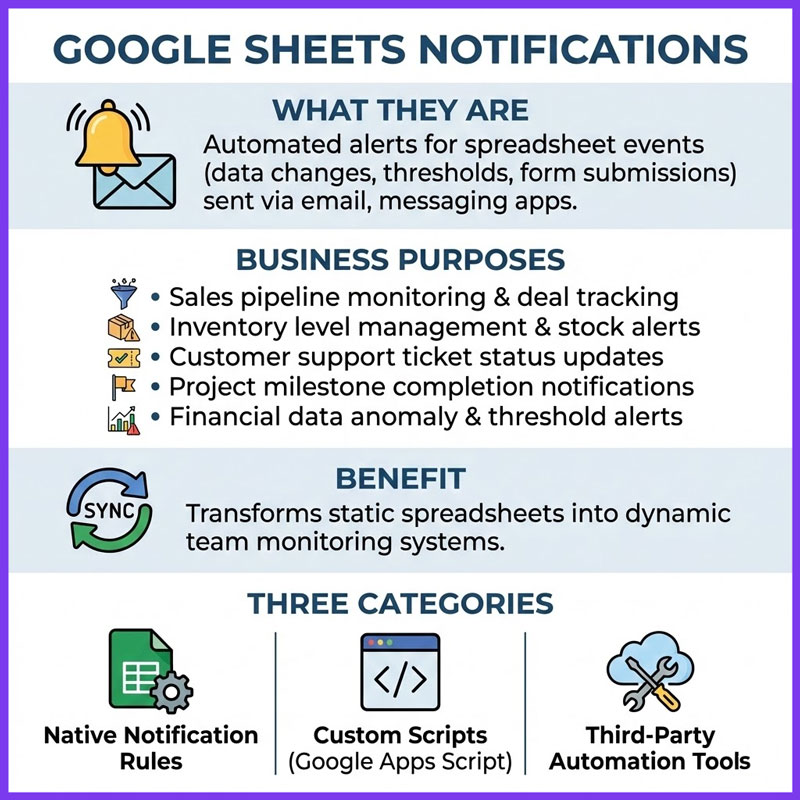
Google Sheets notifications are automated alerts that inform you when specific events occur in your spreadsheet. Instead of manually checking for updates, you receive instant messages via email, messaging apps, or other channels when data changes, thresholds are exceeded, or forms are submitted.
These notifications serve multiple business purposes including:
- Sales pipeline monitoring and deal progress tracking
- Inventory level management and stock alerts
- Customer support ticket status updates
- Project milestone completion notifications
- Financial data anomaly detection and threshold alerts
The right notification setup transforms static spreadsheets into dynamic monitoring systems that keep your entire team synchronized.
There are three main categories of Google Sheets notifications: native notification rules built into Google Sheets, custom scripts using Google Apps Script, and third-party automation tools that extend functionality beyond what Google provides natively.
Using Built-in Notification Rules
Google Sheets includes a native notification feature that works for basic monitoring needs without requiring any coding knowledge.
Setup Steps
To enable built-in notifications, follow these simple steps:
- Open your Google Sheet and navigate to Tools → Notification rules from the top menu
- Choose your trigger event: “Any changes are made” sends alerts whenever someone edits the spreadsheet, while “A user submits a form” notifies you about new Google Form responses
- Select notification frequency: “Email – right away” sends immediate alerts, or “Email – daily digest” compiles changes into one summary email
- Click Save to activate your notification rule
Google will now send you email notifications based on your selected preferences. You’ll receive alerts at your Google account email address, and can manage multiple notification rules for different spreadsheets.
Limitations of Native Notifications
While convenient for basic use cases, built-in notification rules have significant constraints:
- Email only: No support for Slack, Discord, Teams, or other messaging platforms
- Basic triggers: Limited to “any change” or “form submission” without conditional logic
- No filtering: Cannot set alerts for specific cell values, number thresholds, or text patterns
- No customization: Generic email format with limited message personalization
- Alert fatigue: High-activity sheets generate excessive notifications without filtering options
For personal spreadsheets or small teams with simple monitoring needs, native notifications work adequately. However, businesses requiring sophisticated monitoring typically need more advanced solutions.
Can Google Sheets Send You Reminders?
Yes, Google Sheets can send reminder-style notifications using conditional notification rules. This relatively new feature allows you to set alerts based on specific cell values or conditions.
Setting Up Conditional Notifications
To create conditional reminders:
- Select the cell or range you want to monitor
- Right-click and choose “Notification rules” from the context menu
- Configure your condition: Set triggers like “when cell value is greater than X” or “when cell contains specific text”
- Choose recipients: Add email addresses of users who should receive alerts
- Save your rule to activate monitoring
This feature works well for reminders such as deadline notifications (when a date cell approaches), budget alerts (when spending exceeds thresholds), or task completion tracking (when status changes to “Done”).
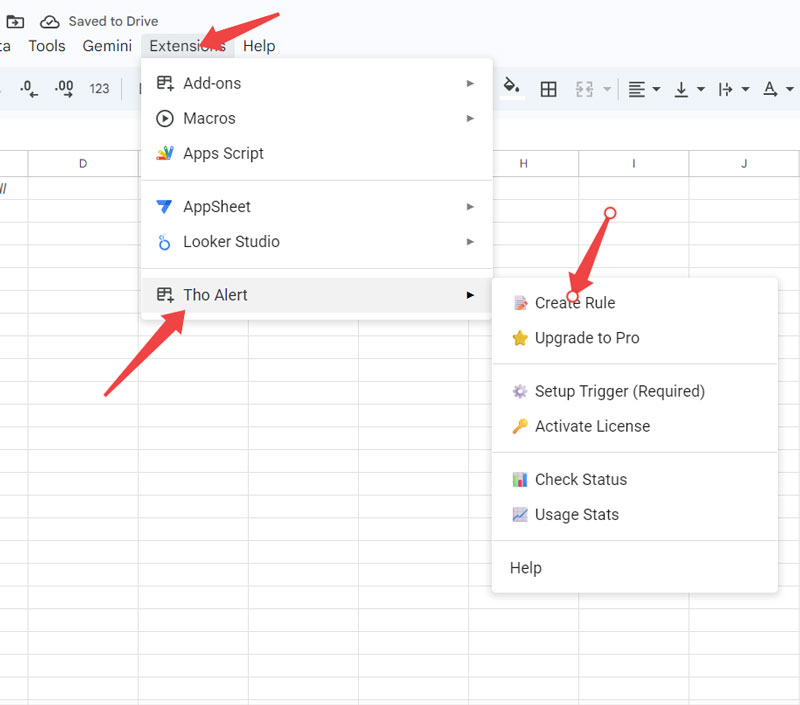
Conditional Notification Constraints
Despite being more advanced than basic notification rules, conditional notifications still have limitations:
- Only supports basic comparison operators (greater than, less than, equals)
- Restricted to email delivery channel
- Limited to 6-8 basic condition types
- No support for complex AND/OR logic combinations
- Cannot integrate with external systems or webhooks
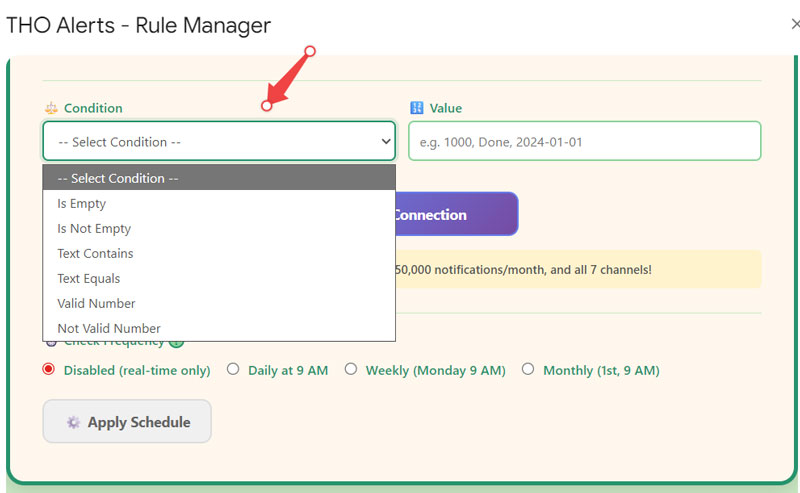
Can You Trigger an Email from Google Sheets?
Yes, you can programmatically trigger custom emails from Google Sheets using Google Apps Script. This method provides maximum flexibility but requires coding knowledge.
Using Google Apps Script for Email Automation
Google Apps Script is a JavaScript-based platform that extends Google Workspace functionality. Here’s how to create custom email triggers:
- Open your spreadsheet and navigate to Extensions → Apps Script
- Write your notification function using the MailApp or GmailApp service
- Set up triggers: Configure time-driven (hourly, daily) or change-driven triggers
- Authorize permissions: Grant script access to send emails on your behalf
- Test thoroughly before deploying to production
Here’s a basic example structure (consult Google Apps Script documentation for complete implementation):
function sendCustomEmail() {
  var sheet = SpreadsheetApp.getActiveSheet();
  var data = sheet.getRange("A2").getValue();

  if (data > 100) {
    MailApp.sendEmail({
      to: "team@example.com",
      subject: "Threshold Alert",
      body: "Value exceeded: " + data
    });
  }
}
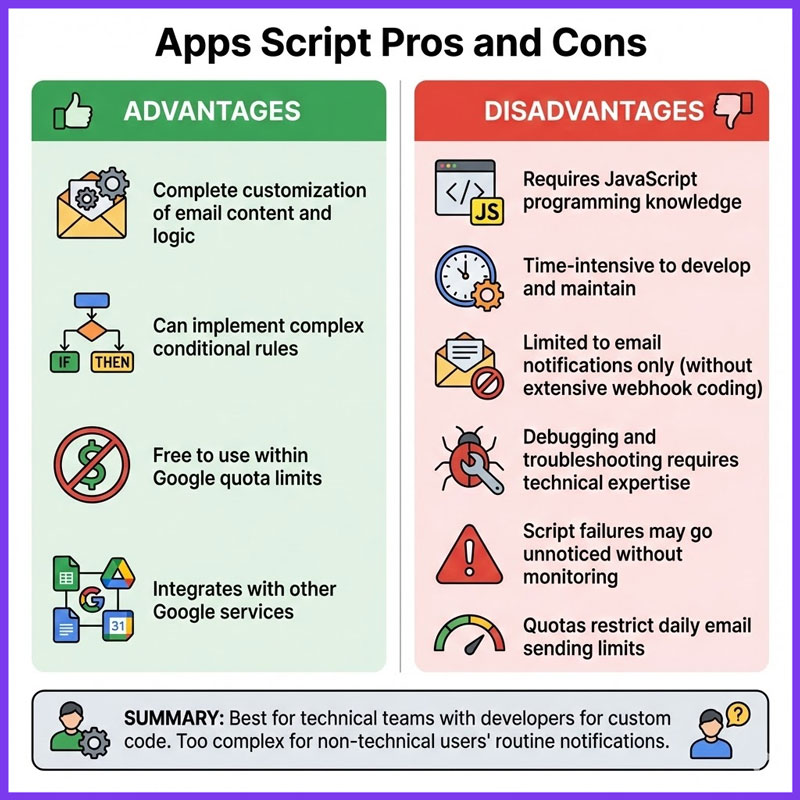
Apps Script Pros and Cons
Advantages:
- Complete customization of email content and logic
- Can implement complex conditional rules
- Free to use within Google quota limits
- Integrates with other Google services
Disadvantages:
- Requires JavaScript programming knowledge
- Time-intensive to develop and maintain
- Limited to email notifications only (without extensive webhook coding)
- Debugging and troubleshooting requires technical expertise
- Script failures may go unnoticed without monitoring
- Quotas restrict daily email sending limits
Apps Script works well for technical teams with developers who can maintain custom code. Non-technical users typically find this approach too complex for routine notification needs.
How Do I Get Google Sheets to Notify Other Users?
Notifying multiple team members across different communication channels requires more sophisticated notification systems than Google’s built-in features provide.
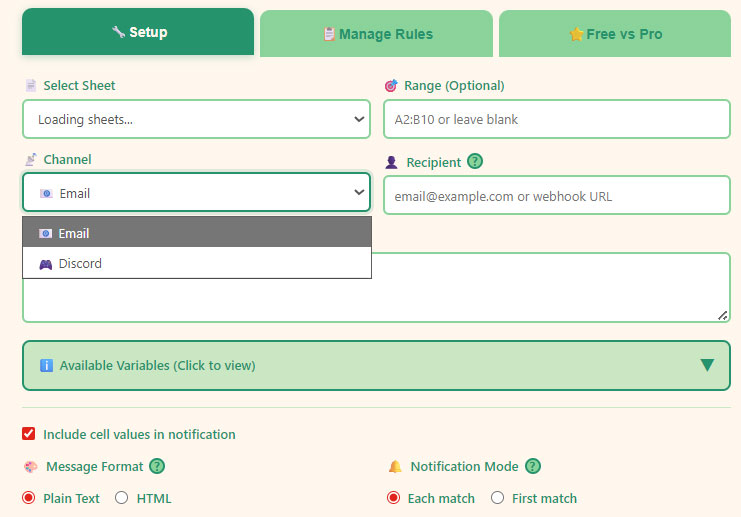
Professional Multi-Channel Alert Requirements
Modern teams collaborate across diverse platforms including Slack, Microsoft Teams, Discord, Telegram, and project management tools. Effective notification systems must meet these enterprise requirements:
- Multi-channel delivery: Send alerts to email, Slack, Teams, Discord, More webhooks, and messaging platforms simultaneously
- Advanced conditional logic: Monitor complex conditions including number ranges, text patterns, regex matching, date validation, and CSV list checks
- Boolean logic: Combine multiple conditions using AND/OR operators for precise trigger control
- Scheduled monitoring: Run checks on daily, weekly, or monthly schedules beyond real-time triggers
- Audit trails: Maintain complete notification history for compliance and troubleshooting
- 24/7 automatic operation: Continue monitoring even when spreadsheets are closed or users are offline
- Zero maintenance: Reliable operation without requiring code updates or technical intervention
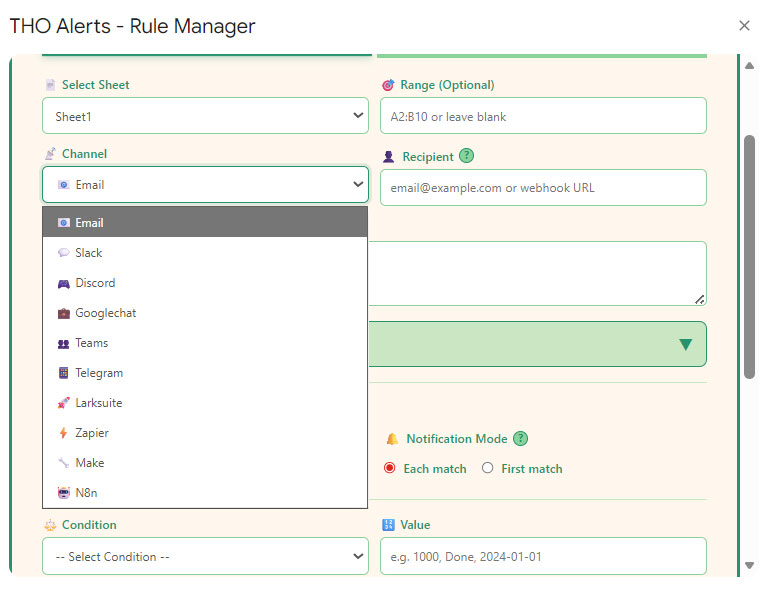
When to Upgrade from Basic Notifications
Consider implementing professional notification solutions when your team experiences:
- More than 5 team members needing synchronized alerts
- Multiple communication channels (email + Slack + Teams)
- Complex monitoring conditions (thresholds, patterns, multi-criteria logic)
- Mission-critical data requiring guaranteed delivery
- Compliance requirements for notification audit trails
- Integration needs with external systems via webhooks
Real-World Success: E-Commerce Inventory Management
A mid-sized e-commerce company implemented advanced spreadsheet notifications to monitor inventory across 200+ products. Previously, they relied on manual checks three times daily, leading to frequent stockouts and lost sales.
After deploying automated multi-channel alerts:
- Response time to low-stock situations decreased from 4 hours to 5 minutes
- Stockout incidents reduced by 85%
- Sales team received instant Slack notifications while warehouse staff got email summaries
- Complex conditions detected patterns like “product X low AND supplier Y unavailable” triggering escalation workflows
The system monitors continuously 24/7 without requiring manual spreadsheet checks, freeing the operations team to focus on strategic tasks rather than reactive monitoring.
Comparison: Google Sheets Notification Methods
| Feature | Native Rules | Conditional Alerts | Apps Script | Automation Add-ons |
|---|---|---|---|---|
| Setup Difficulty | Easy | Easy | Hard | Easy |
| Notification Channels | Email only | Email only | Email only | 10+ channels |
| Condition Types | 2 basic | 6 basic | Unlimited (custom code) | 25+ advanced |
| Logic Rules | None | Single condition | Custom code | AND/OR combinations |
| Maintenance Required | None | None | High | None |
| Cost | Free | Free | Free | Free tier + Paid plans |
| Technical Skills Needed | None | None | JavaScript programming | None |
| Best For | Personal spreadsheets | Small teams, simple monitoring | Developers, custom workflows | Professional teams, enterprises |
Setting Up Automated Notifications: Best Practices
Regardless of which notification method you choose, following these best practices ensures effective implementation and prevents common pitfalls.
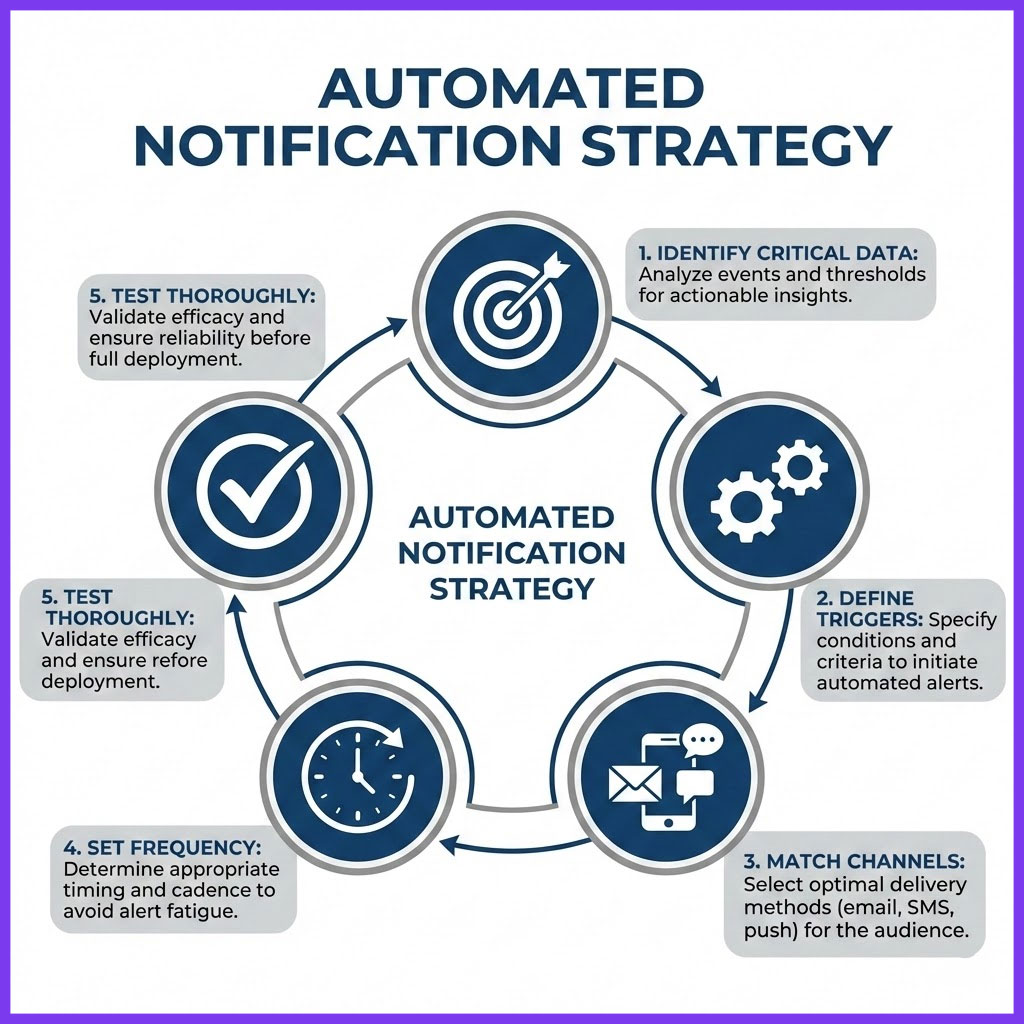
Planning Your Notification Strategy
1. Identify critical data points: Don’t monitor everything—focus on metrics that require immediate action. Prioritize revenue-impacting data, customer-facing issues, and compliance-sensitive information.
2. Define precise trigger conditions: Vague conditions generate false alerts. Instead of “when sales change,” specify “when daily sales drop below $5,000 OR exceed $50,000.” Clear thresholds prevent alert fatigue.
3. Match channels to audience needs: Send instant Slack alerts to on-call teams, email summaries to managers, and webhook triggers to automation systems. Different stakeholders need different delivery methods.
4. Set appropriate frequency: Balance responsiveness with alert fatigue. Real-time alerts work for critical events; digest summaries suit routine monitoring. Consider time zones for international teams.
5. Test thoroughly before production: Use test data to verify conditions trigger correctly, messages contain accurate information, and all recipients receive notifications. Fix issues before going live.
Common Use Cases and Templates
Sales Pipeline Monitoring:
- Alert when deal value exceeds $10,000
- Notify when deal stage changes to “Negotiation” or “Closed Won”
- Warning when deals remain in same stage for 30+ days
Inventory Threshold Alerts:
- Low stock warning when quantity drops below 20 units
- Critical alert when stock reaches zero
- Overstock notification when quantity exceeds 500 units
Customer Support Monitoring:
- Urgent ticket alert when priority = “High” AND status = “Open”
- Escalation when ticket age exceeds 48 hours without response
- Resolution notification when status changes to “Closed”
Project Milestone Tracking:
- Completion alert when task status = “Done”
- Delay warning when due date passed AND status ≠ “Complete”
- Team notification when project phase advances
Financial Data Monitoring:
- Budget alert when expenses exceed 80% of allocated amount
- Anomaly detection when daily variance exceeds 25%
- Approval trigger when purchase request exceeds $1,000
Troubleshooting Common Notification Issues
Notifications Not Arriving
Check spam folders: Automated emails frequently land in spam. Add sender addresses to safe sender lists and check Gmail’s Social/Promotions tabs.
Verify permissions: Ensure scripts have authorization to send emails and notification rules are active. Check Extensions → Apps Script → Triggers for script-based alerts.
Confirm email addresses: Typos in recipient addresses cause delivery failures. Verify all email addresses are correctly formatted and active.
Review quota limits: Google Apps Script has daily email sending limits (100 emails/day for free accounts). Upgrade to Google Workspace for higher quotas.
Too Many Alerts (Alert Fatigue)
Refine trigger conditions: Overly broad conditions generate excessive notifications. Add additional criteria to filter out non-critical changes.
Use digest mode: Switch from real-time to daily digest for non-urgent monitoring. Consolidate multiple alerts into periodic summaries.
Implement thresholds: Instead of alerting on any change, set meaningful thresholds (e.g., “notify when change exceeds 10%”).
Add cool-down periods: Prevent duplicate alerts by implementing time-based filters that suppress repeated notifications within specified intervals.
Missing Data in Notifications
Verify cell references: Ensure notification messages reference correct cells and ranges. Update formulas when spreadsheet structure changes.
Handle empty cells: Add error handling for empty or invalid data. Use conditional logic to check for null values before sending alerts.
Format data appropriately: Convert dates, numbers, and currency to readable formats in notification messages rather than displaying raw values.
Multi-User Access Problems
Check sharing settings: Ensure all team members have appropriate spreadsheet access levels (Viewer, Commenter, or Editor).
Authorization scope: Script-based notifications may fail if scripts aren’t authorized for all users. Use service accounts for organization-wide deployments.
Trigger ownership: Time-based triggers run under the account that created them. If that user loses access, triggers stop working.
Choosing the Right Notification Solution
The optimal notification method depends on your specific requirements, technical capabilities, and scale of operations.
Use Native Notification Rules When:
- Managing personal spreadsheets or very small teams (1-3 users)
- Email notifications are sufficient for your workflow
- Monitoring simple “any change” or form submission events
- Budget is zero and basic functionality meets your needs
Use Conditional Notifications When:
- Working with small teams (3-10 users) needing basic condition monitoring
- Tracking specific cell value changes or simple thresholds
- Email remains your primary communication channel
- Conditions are straightforward without requiring complex logic
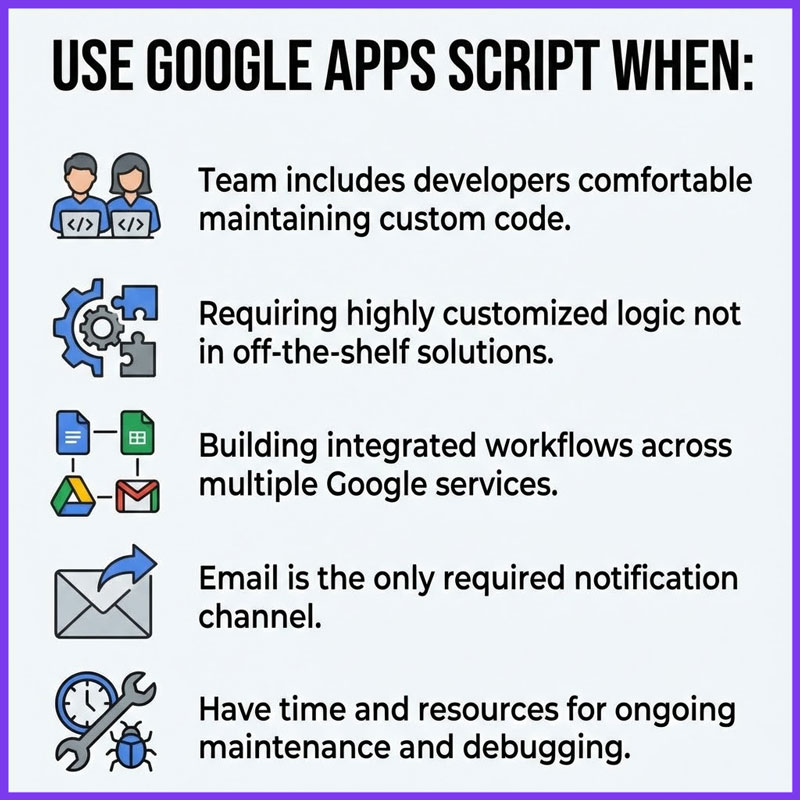
Use Google Apps Script When:
- Your team includes developers comfortable maintaining custom code
- Requiring highly customized logic that off-the-shelf solutions don’t provide
- Building integrated workflows across multiple Google services
- Email is the only required notification channel
- You have time and resources for ongoing maintenance and debugging
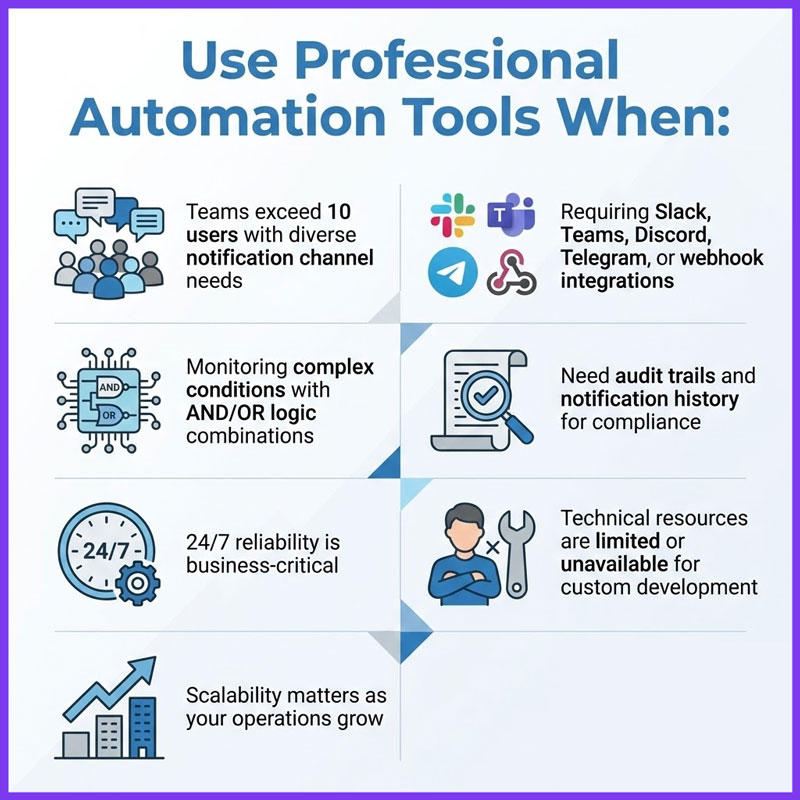
Use Professional Automation Tools When:
- Teams exceed 10 users with diverse notification channel needs
- Requiring Slack, Teams, Discord, Telegram, or webhook integrations
- Monitoring complex conditions with AND/OR logic combinations
- Need audit trails and notification history for compliance
- 24/7 reliability is business-critical
- Technical resources are limited or unavailable for custom development
- Scalability matters as your operations grow
Advanced Notification Capabilities for Growing Teams
As businesses scale, notification requirements become increasingly sophisticated. Professional teams benefit from enterprise-grade features that basic solutions cannot provide.
Multi-Channel Communication
Modern teams collaborate across 10+ platforms including Email, Slack, Microsoft Teams, Discord, Telegram, Google Chat, and various webhook-enabled systems. Unified notification systems deliver alerts to the right channel for each recipient, ensuring messages reach team members on their preferred platforms.
For example, sales representatives might receive instant Slack notifications about high-value deals, while finance teams get detailed email reports with spreadsheet links, and automated systems receive webhook calls to trigger downstream workflows. This multi-channel approach eliminates communication silos and accelerates response times.
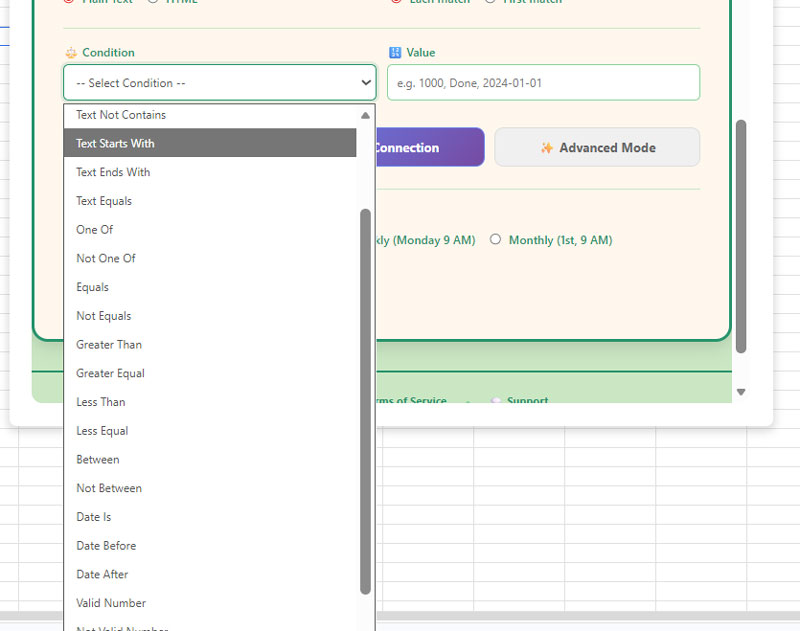
Advanced Condition Types
Beyond basic comparisons, professional monitoring requires 25+ condition types including:
- Numeric conditions: Greater than, less than, between ranges, percentage changes, variance detection
- Text matching: Contains, starts with, ends with, exact match, regex patterns
- Date validation: Before, after, between dates, relative dates (yesterday, last week, next month)
- List operations: In CSV list, not in list, multiple value matching
- Email/URL validation: Format verification for data quality monitoring
- Empty state checks: Is empty, is not empty, became empty, was filled
- Change detection: Value changed, increased, decreased, changed to specific value
These advanced conditions enable precise monitoring that eliminates false alerts while catching every critical event.
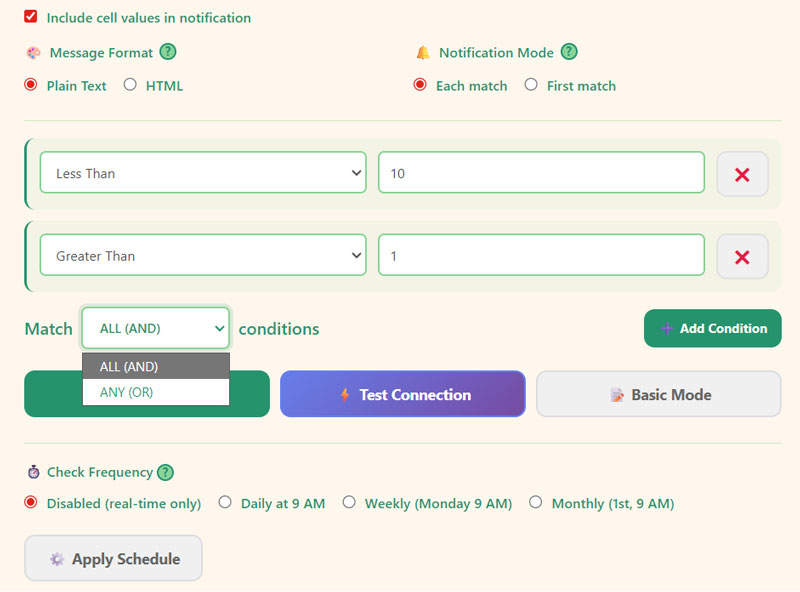
AND/OR Logic Combinations
Real-world business rules rarely fit into simple single-condition triggers. Complex scenarios require boolean logic:
Example 1: Alert when (Inventory < 20 AND Supplier Status = “Delayed”) OR (Inventory < 5)
Example 2: Notify when (Deal Value > $50,000 AND Stage = “Proposal”) OR (Deal Age > 60 days AND Stage ≠ “Closed Lost”)
Example 3: Warning when (Budget Spent > 80% AND Month < November) OR (Budget Spent > 95%)
Unlimited AND/OR combinations allow modeling of sophisticated business logic without writing code.
Scheduled Monitoring
Not all monitoring requires real-time triggers. Scheduled checks run on daily, weekly, or monthly intervals, perfect for:
- End-of-day summary reports
- Weekly performance reviews
- Monthly compliance audits
- Periodic data validation checks
Scheduled monitoring conserves notification quotas while ensuring regular oversight of important metrics.
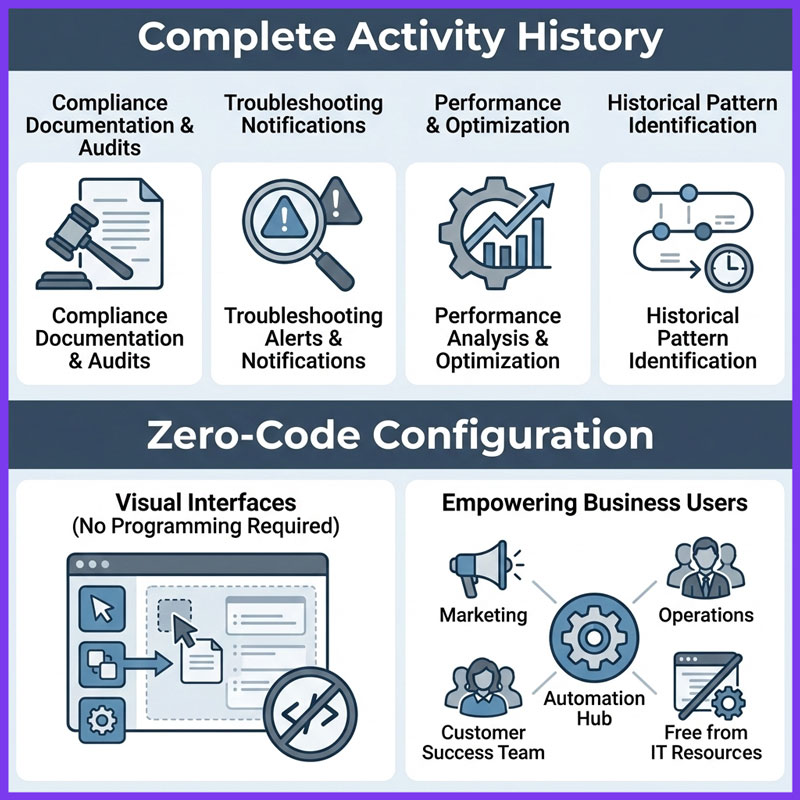
Complete Activity History
Enterprise environments require audit trails showing when notifications fired, what conditions triggered them, who received alerts, and what data values caused triggers. Full activity logs enable:
- Compliance documentation and regulatory audits
- Troubleshooting false alerts or missed notifications
- Performance analysis and optimization
- Historical pattern identification
Zero-Code Configuration
Professional solutions provide visual configuration interfaces that require no programming knowledge. Non-technical team members can create, modify, and manage sophisticated notification rules through intuitive point-and-click interfaces.
This democratization of automation empowers marketing managers, operations coordinators, customer success teams, and other business users to implement monitoring without depending on IT resources.
Getting Started with Professional Notifications
For teams ready to implement enterprise-grade spreadsheet monitoring, specialized automation tools offer the most efficient path forward.
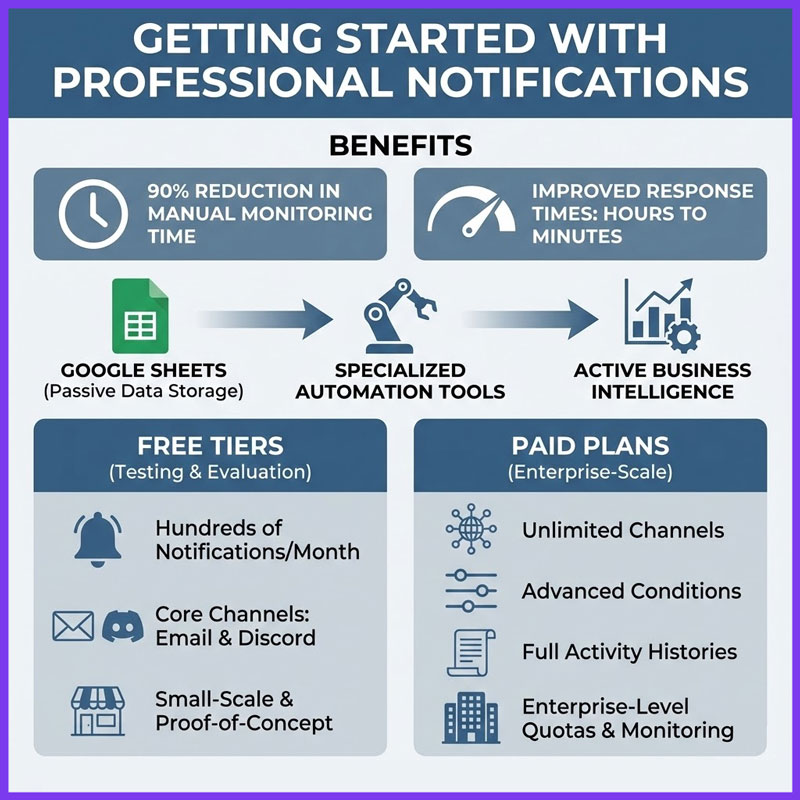
Based on our experience at ThoDigitals implementing 1,000+ automation workflows across industries, we’ve seen teams reduce manual monitoring time by 90% while improving response times from hours to minutes. The right notification system transforms Google Sheets from passive data storage into active business intelligence.
Professional notification platforms typically offer free tiers for testing and evaluation, allowing teams to validate functionality before committing to paid plans. Free tiers generally include hundreds of monthly notifications and access to core channels like email and Discord—sufficient for small-scale operations or proof-of-concept implementations.
Paid plans unlock unlimited channels, advanced conditions, full activity histories, and enterprise-level notification quotas suitable for organizations monitoring dozens or hundreds of spreadsheets simultaneously.
Implementation Checklist
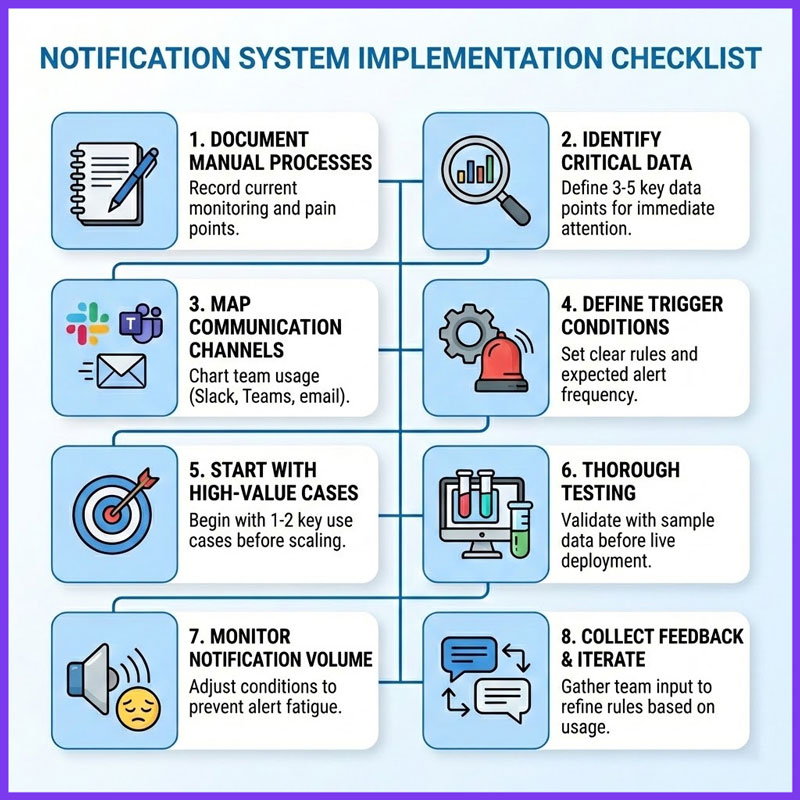
When deploying any notification system:
- Document current manual monitoring processes and pain points
- Identify the 3-5 most critical data points requiring immediate attention
- Map team communication channels (who uses Slack vs. Teams vs. email)
- Define clear trigger conditions and expected alert frequencies
- Start with one or two high-value use cases before expanding
- Test thoroughly with sample data before going live
- Monitor notification volume and adjust conditions to prevent alert fatigue
- Collect team feedback and iterate on rules based on real-world usage
Next Steps
Start by evaluating your current notification needs against the comparison table earlier in this guide. If native Google Sheets features meet your requirements, implement those first. As your needs grow, you can always upgrade to more sophisticated solutions.
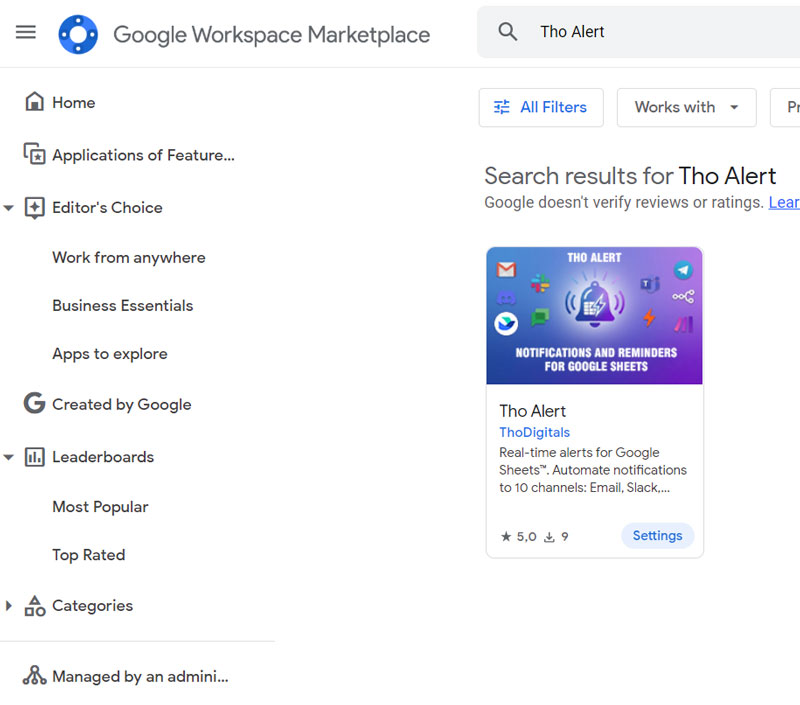
For teams requiring multi-channel notifications, advanced conditional logic, and enterprise reliability, exploring specialized automation tools designed specifically for Google Sheets monitoring makes sense. Tools like THO Alerts provide comprehensive notification capabilities with zero-code configuration, making advanced automation accessible to teams of any size.
The most successful implementations start small, prove value quickly, and expand gradually. Focus on solving one painful manual process first, then build on that success to automate additional workflows.
Frequently Asked Questions
Can I send notifications to mobile devices?
Yes, through multiple methods. Email notifications arrive on mobile devices via native email apps. Messaging platform integrations (Slack, Teams, Discord, Telegram) send push notifications to mobile apps when configured. This ensures you receive critical alerts regardless of location or device.
How many notifications can I send per day?
Limits vary by method. Native Google notification rules have no hard limits but may throttle excessive volumes. Google Apps Script free accounts have 100 emails per day; Google Workspace accounts get higher quotas. Professional automation tools typically offer 550-50,000+ notifications per month depending on plan tier.
Can I customize notification message content?
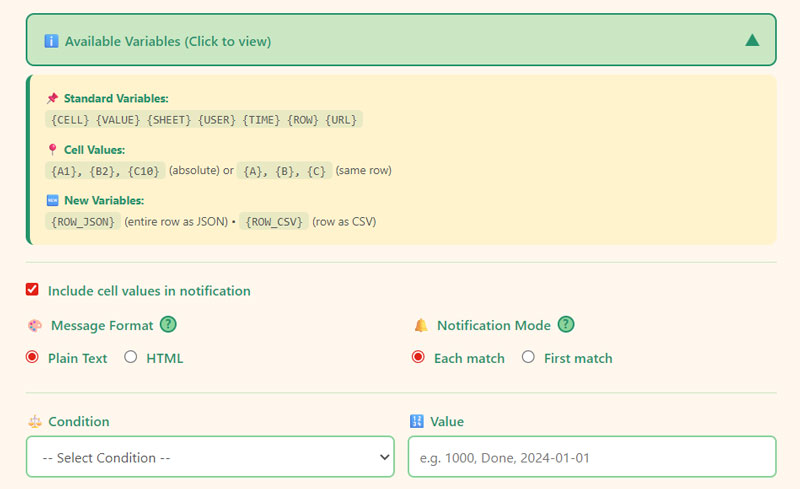
Native notification rules send fixed-format emails. Apps Script allows complete customization through code. Professional automation tools typically offer dynamic variables that insert cell values, formulas, and timestamps into customizable message templates—providing flexibility without requiring programming.
Do notifications work when my spreadsheet is closed?
Yes, notifications configured through Google Sheets run server-side and continue monitoring 24/7 regardless of whether anyone has the spreadsheet open. This applies to native rules, Apps Script triggers, and professional automation tools. You don’t need to keep your browser open or computer running.
Can I send notifications to people who don’t have Google accounts?
Email notifications can be sent to any email address. Messaging platform notifications (Slack, Teams, Discord) require recipients to have accounts on those platforms. Webhook integrations can trigger notifications in any system with API access, regardless of user accounts.
What happens if my trigger condition has an error?
Native notification rules fail silently if spreadsheet access is lost. Apps Script sends error emails to the script owner when execution fails. Professional automation tools typically include error logging, notification failure alerts, and diagnostic information to help troubleshoot issues quickly.
Can I temporarily pause notifications without deleting rules?
Native notification rules must be deleted and recreated. Apps Script triggers can be disabled through the triggers interface. Professional automation tools generally include toggle switches to enable/disable rules without losing configuration—useful for testing, maintenance windows, or seasonal operations.
Conclusion
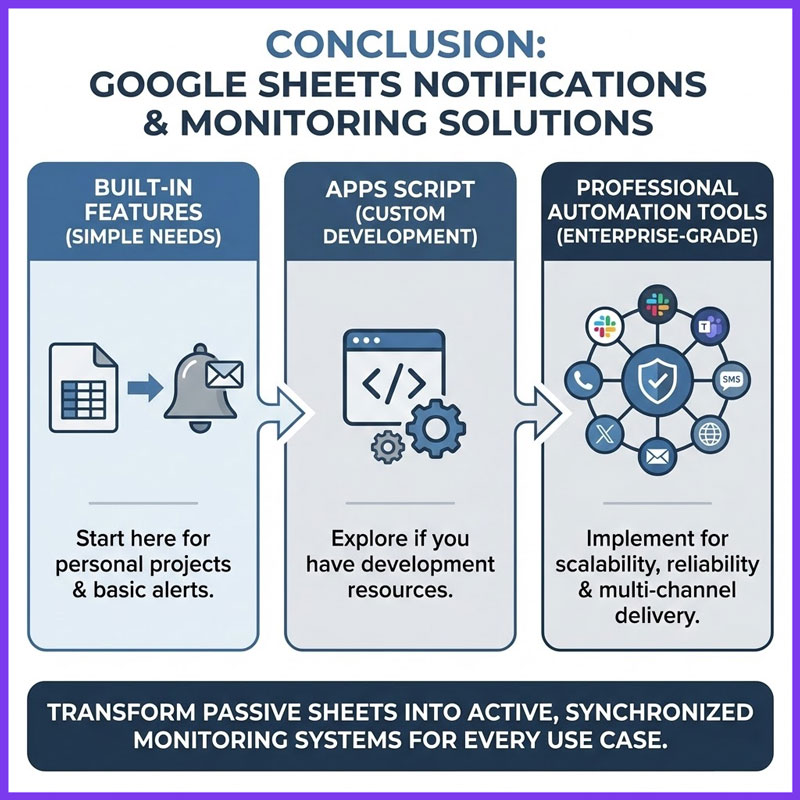
Google Sheets notifications transform passive spreadsheets into active monitoring systems that keep teams synchronized and responsive. Whether you need basic email alerts for personal projects or enterprise-grade multi-channel monitoring for business-critical operations, the right solution exists for every use case.
Start with Google’s built-in features if your needs are simple, explore Apps Script if you have development resources, or implement professional automation tools when scalability, reliability, and multi-channel delivery matter most to your operations.
The investment in automated notifications pays dividends through faster response times, reduced manual monitoring burden, and improved team collaboration. In ThoDigitals’ experience working with hundreds of organizations, teams that implement effective notification systems typically see 70-90% reduction in time spent on manual data checking, allowing them to focus on strategic work that drives business growth.
Ready to stop missing critical updates in your spreadsheets? Choose the notification method that matches your current needs, start with one high-value use case, and expand as you experience the benefits of automated monitoring.
Looking for a comprehensive solution that combines ease of use with enterprise capabilities? THO Alerts offers 10+ notification channels, 25 advanced conditions, and 24/7 monitoring with a free tier for getting started—no credit card required.
About ThoDigitals: We specialize in Google Workspace automation, helping businesses streamline workflows and eliminate manual processes. For questions or implementation assistance, contact us at support@thodigitals.com