

How to Transfer Ownership of Google Sheets (2025 Guide)
Transferring Google Sheets ownership is a common task when employees leave, teams reorganize, or you need to manage storage limits. This guide walks you through the exact steps, troubleshooting tips, and important restrictions you need to know.
Why Transfer Ownership of Google Sheets?
Here are the most common scenarios where you need to transfer Google Sheet ownership:
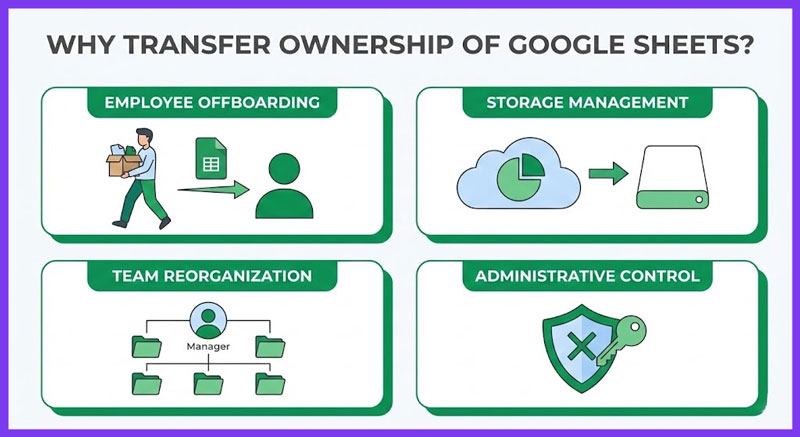
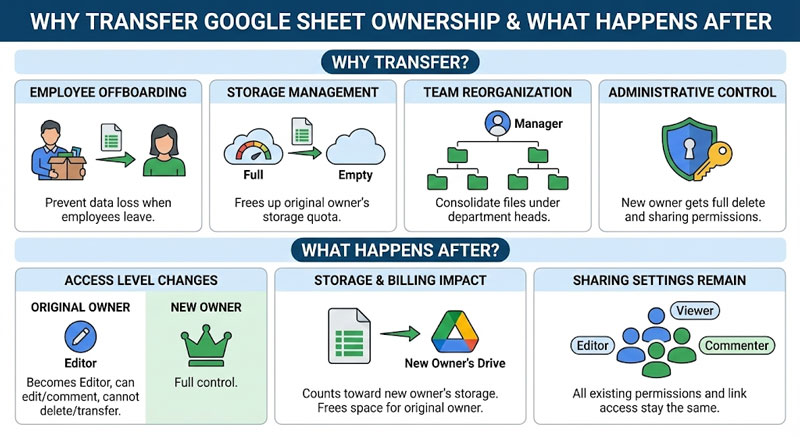
- Employee offboarding: When someone leaves your organization, their files need a new owner to prevent data loss
- Storage management: Files count toward the original owner’s Google Drive storage quota. Transferring ownership frees up space
- Team reorganization: Consolidating files under department heads or project managers for better control
- Administrative control: The new owner gets full permission to delete the file and manage all sharing settings
Prerequisites Before You Start
Before you can transfer ownership of Google Sheets, make sure you meet these requirements:
You will need:
- Current owner access to the Google Sheet
- New owner’s email address
- Both accounts in the same Google Workspace organization
- Desktop browser (mobile app has limited options)
You CANNOT transfer ownership if:
- New owner uses personal Gmail (@gmail.com) and you use Workspace (@company.com)
- The file is located in a Shared Drive (ownership belongs to the organization)
- Your Workspace admin has disabled the transfer ownership feature
- You are not the current owner of the file
How to Transfer Ownership of Google Sheets (Step-by-Step)
Follow these steps to successfully transfer Google Sheet ownership to another person:
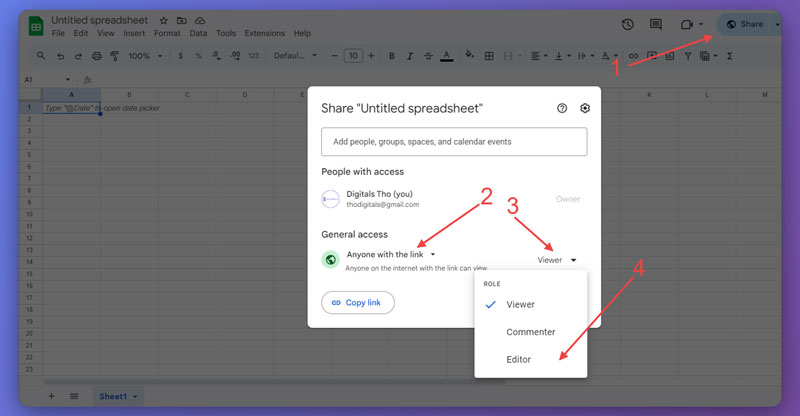
Step 1: Share the Sheet with New Owner
- Open your Google Sheet in your browser
- Click the blue Share button in the top-right corner
- Type the new owner’s email address in the “Add people and groups” field
- Set their role to Editor (they must be Editor first, not Viewer or Commenter)
- Click Send to share the file
Step 2: Transfer Ownership
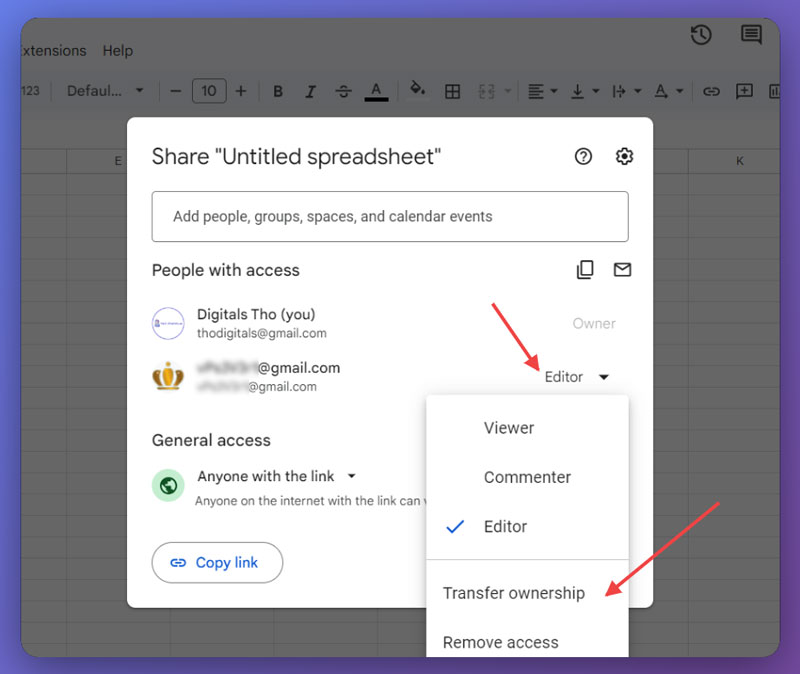
- In the same Share dialog, locate the person’s email in the list
- Click the dropdown menu next to their name (currently showing “Editor”)
- Select “Make owner” from the dropdown options
- A warning message appears: “You will become an Editor” – Click Yes to confirm
Step 3: New Owner Receives Confirmation
- The new owner receives an email notification: “You are now the owner of [Sheet Name]”
- They click Open in the email (ownership is accepted automatically in most cases)
- You now appear as Editor in the sharing settings
Transfer timing: Ownership transfer happens instantly after you click “Yes” in the confirmation dialog.
What Happens After Transferring Ownership?
Understanding the consequences of transferring Google Sheet ownership helps you make informed decisions:
Your Access Level Changes
- You automatically become an Editor (not removed from the file)
- You can still edit, comment, and view revision history
- You cannot delete the file or transfer ownership again
- You cannot change sharing settings for other users
Storage and Billing Impact
- The file now counts toward the new owner’s Google Drive storage
- If you were near your storage limit, this frees up space immediately
- The file appears in the new owner’s “My Drive” under “Shared with me”
Sharing Settings Remain Unchanged
- All existing sharing permissions stay the same
- Anyone with the link can still access (if this was enabled)
- All collaborators keep their current roles (Editor, Viewer, Commenter)
Troubleshooting: Make Owner Option Missing
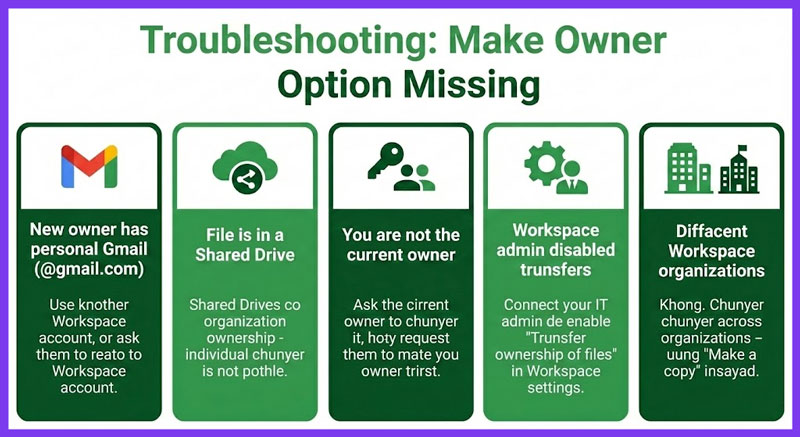
The most common issue when trying to transfer ownership of Google Sheets is not seeing the “Make owner” option. Here are the causes and solutions:
| Problem | Solution |
|---|---|
| New owner has personal Gmail (@gmail.com) | Use another Workspace account, or ask them to create a Workspace account |
| File is in a Shared Drive | Shared Drives have organizational ownership – individual transfer is not possible |
| You are not the current owner | Ask the current owner to transfer it, or request them to make you owner first |
| Workspace admin disabled transfers | Contact your IT admin to enable “Transfer ownership of files” in Workspace settings |
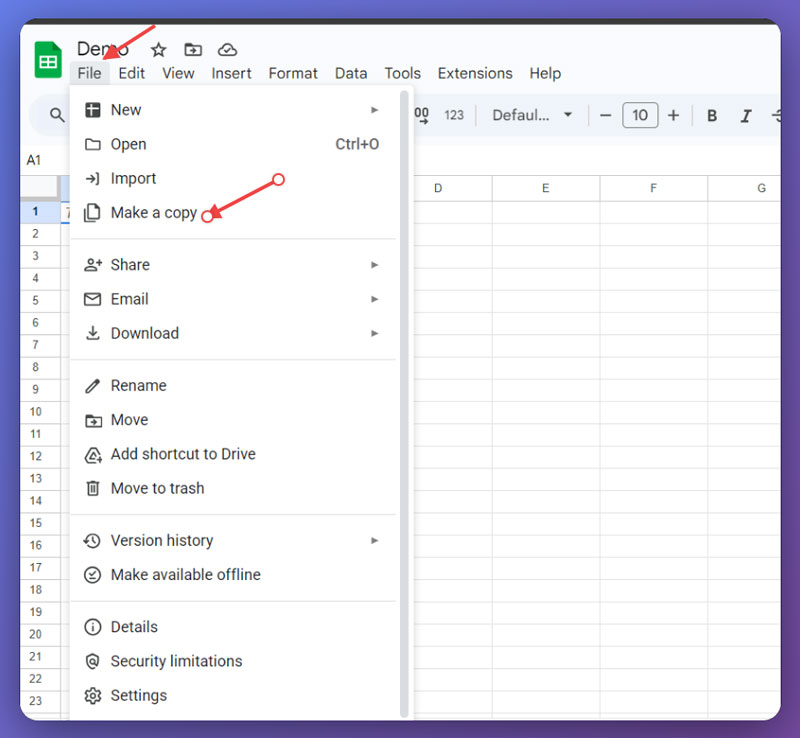
| Different Workspace organizations | Cannot transfer across organizations – use “Make a copy” instead |
New Owner Did Not Receive Email
If the new owner does not receive the ownership transfer email:
- Check their spam or junk mail folder
- Re-send the sharing invitation from the Share dialog
- Ask them to manually open the sheet via the shared link
- Verify their email address is spelled correctly
You Do Not Have Permission Error
This error appears when:
- Your Workspace administrator has restricted external sharing
- The sheet contains Apps Script code with restricted API scopes
- The recipient’s organization blocks incoming file transfers
Solution: Ask your admin to temporarily enable external sharing, or use “Make a copy” and share the duplicated file as a workaround.
Transfer vs Make a Copy vs Move to Shared Drive
Understanding alternatives to transferring Google Sheet ownership helps you choose the right approach:
| Method | When to Use | Permissions | Original File |
|---|---|---|---|
| Transfer Ownership | Permanent handoff within same organization | All existing permissions kept | You become Editor |
| Make a Copy | Cross-organization sharing or backup needed | New owner sets new permissions | You keep full ownership |
| Move to Shared Drive | Team collaboration and continuity | Managed by Drive admins | Organization owns it |
Frequently Asked Questions
Can I transfer ownership from company email to personal Gmail?
No. Google Workspace accounts can only transfer ownership to other accounts in the same organization. To share with personal Gmail users, you need to “Make a copy” of the sheet and share the copy instead.
Can I get ownership back after transferring?
Yes, but only if the new owner transfers ownership back to you. There is no automatic “undo” button. Make sure you trust the recipient before transferring.
What happens if the new owner’s account is deleted?
If the new owner’s Workspace account is deleted, the file goes to their organization’s admin account. For personal Google accounts, the file may be permanently deleted after the 30-day grace period.
Can I transfer ownership of multiple sheets at once?
No. Google Sheets requires individual transfer for each file. For bulk transfers, you need to use Google Drive API or create a Google Apps Script automation.
Does this work the same for Google Docs and Slides?
Yes. The process to transfer ownership is identical across all Google Workspace apps including Google Docs, Google Slides, Google Forms, and Google Drive folders.
Can Viewers or Commenters become owners?
No. The recipient must have Editor access first. Upgrade them to Editor role, then you will see the “Make owner” option appear in the dropdown menu.
Will I lose access to the sheet after transfer?
No. When you transfer Google Sheet ownership, you automatically become an Editor. You keep full editing rights but lose the ability to delete the file or manage ownership.
Conclusion
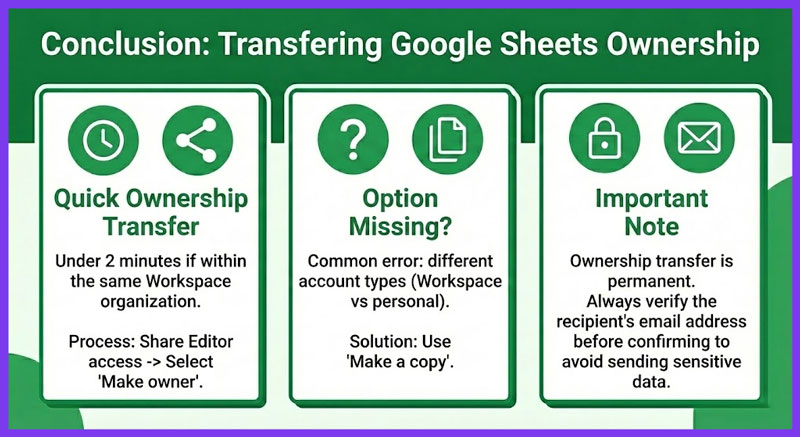
Transferring ownership of Google Sheets takes less than 2 minutes when both accounts are in the same Google Workspace organization. The process involves sharing the file with Editor access first, then selecting “Make owner” from the permissions dropdown.
If you encounter the “Make owner” option missing, the most common cause is attempting to transfer between different organization types (Workspace vs personal Gmail). In this case, use “Make a copy” as your workaround solution.
Remember that ownership transfer is permanent unless the new owner transfers it back to you. Always verify the recipient’s email address before confirming the transfer to avoid sending sensitive data to the wrong person.